

Ever wondered why your Mac’s fans never stop?

Adobe's Background Processes Were Cooking My iMac, So I Built a Kill SwitchEver wondered why your Mac’s fans never stop?
I am lucky enough to have two excellent Macs - one is a 2023 M2 MacBook Pro Max and the other is a 2019 Intel iMac with that stunning 32” display. The MacBook is my main machine, but I love using the iMac too (particularly since I replaced the Fusion Drive with an SSD) and I would use it more often, but for one reason - the fans always seem to be blowing like a hairdryer on full power. Now I’ve investigated all of this before and I know for a fact that the reason those fans kept spinning up was because of a couple of deeply irritating and (it turns out) largely irrelevant processes that are part of the Adobe Creative Cloud suite. I don’t want to get into a big ‘Adobe are fucking nazi scumbags and you deserve everything you get if you install that god-awful shite on your Mac’ to-and-fro but suffice to say that writing about software such as the Adobe suite is my actual job and also my entire 250,000 photo catalog is in Adobe Lightroom, so the suite isn’t going anywhere. Like a Plague of Pestilent ProcessesAnyone that’s installed Adobe software knows that those fuckers like nothing better than spewing pointless processes, apps and utilities all over your hard drive - 90% of which seem to have been designed for nothing more than stress-testing CPUs and fan enclosures. If you have the Adobe suite installed on a Mac then right now this sorry parade of garbage is cluttering your hard drive and your activity monitor: Adobe's Little HelpersAdobe Desktop Service, AdobeIPCBroker, Creative Cloud Helper, Creative Cloud UI Helper, CCXProcess, Creative Cloud Content Manager, Creative Cloud Libraries Synchronizer, Core Sync, Adobe Content Synchronizer, Adobe Crash Processor, AdobeCRDaemon, AdobeGCClient, AdobeGCInvokerUtility, AdobeUpdateService, AdobeUpdateDaemon, Adobe Context Menu Extension, Adobe Installer Several of these are particularly pestilent entities - I’m looking at you Creative Cloud Content Manager (the absolute worst), Adobe Content Synchroniser, Core Sync, Adobe Desktop Service and Creative Cloud Libraries Synchroniser. None of these shitty processes do anything of benefit to anyone other than Adobe and you certainly don’t need them running to use the apps you actually rent from them. I don’t have the Adobe suite installed on my Windows PC because I only use that for playing Team Fortress on, but I’m pretty certain that Adobe opened their corporate bowels and shat a load of Windows equivalent GPU-eating processes on that system too. But I only know about the Mac version and that’s what I decided to deal with. Nuke it From OrbitToday, as I heard my iMac’s fans spin up once again because I had the nerve to launch Adobe Photoshop Beta, I finally broke and decided to get my revenge on Adobe or to quote Pulp Fiction, to call a couple of hard, pipe-hitting gentlemen to go to work on the homes here with a pair of pliers and a blow torch. I gave Claude code the job of hunting down these processes, of adding them to a kill list and of making a little utility for me that would nuke these shitty pests whenever called upon - but not so hard that the Adobe apps would stop working.
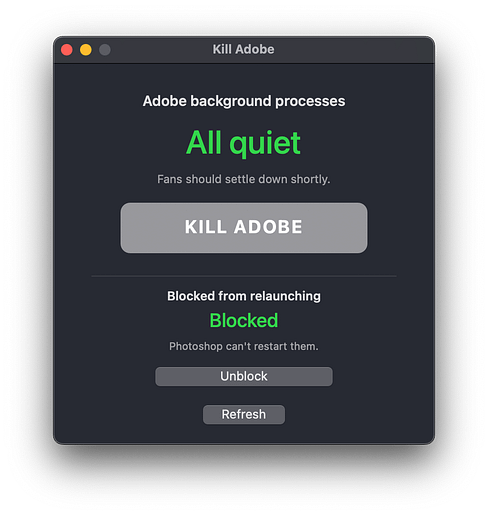
After a bit of back-and-forth and the identification of other minor processes that tried to evade my ban-hammer, Claude made me a nice little application called ‘Kill Adobe’. As you can see it has a couple of buttons that do the dirty work: Kill Adobe looks at everything running on my Mac, picks out Adobe’s background processes, and shuts them down. Not Photoshop, not Lightroom, not anything I actually opened myself. Just the dangle-berries and clinkers. It also tells macOS not to start two of the worst offenders when I next log in. Block is some epic wanker-prevention. Killing a process only lasts until something starts it again, and opening something like Photoshop starts the whole lot within seconds. Block goes a step further and removes the permission for those programs to run at all, so when Photoshop looks for them it finds a locked door and just chunters on its merry way. It’ll ask for my password, because changing something at that level always does, but that’s okay. The window itself also shows a live count. Green “All quiet” means nothing of Adobe’s is running. Red with a number means they’re back, and it tells me whether they’re currently blocked or not. Unblock puts everything back exactly as it was, in case I have an aneurysm and decide I want Creative Cloud sync after all. And yes, an Adobe update can reset the permissions, at which point the app will say “Partly blocked” and I just press Block again. Bloody marvellous. The whole thing is written in Swift and was built for functionality and not looks, but if people are interested in having their own Kill Adobe app, I can pretty it up easily enough and release it as a properly notarised Mac app. Just say the word. You’re currently a free subscriber to RAW & Unfiltered - Photography in the Real World. For access to exclusive member-only content and to help me keep the lights on, consider upgrading your subscription. I promise to bring you the cold hard facts, filter-free and completely devoid of all marketing bollocks.
|




 Posts
Posts









0 Comments
This story about sharing